

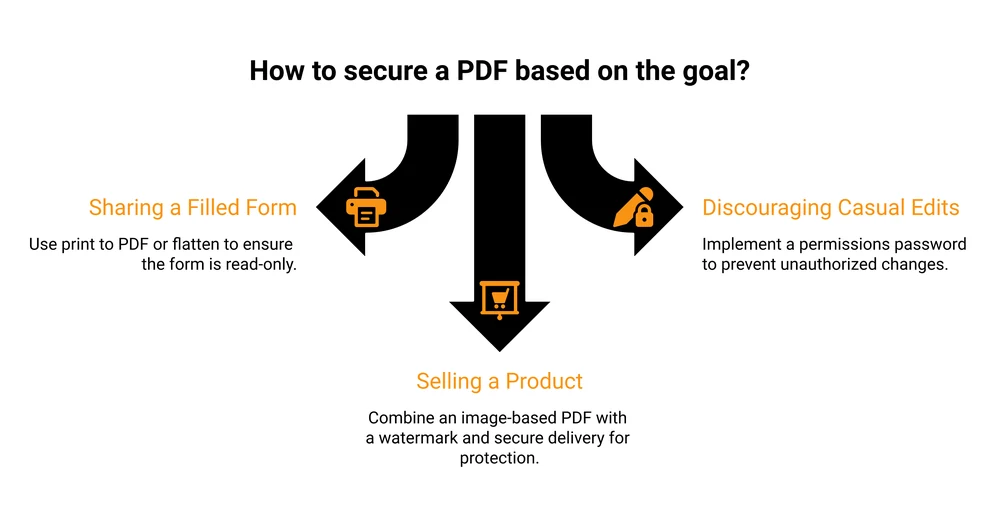
To make a PDF non-editable, print it to a new PDF, flatten its form fields, or add a permissions password in Adobe Acrobat that blocks editing. Print-to-PDF is the fastest free option and works on Windows, Mac, or Chrome. For a file you sell, convert it to an image-based PDF or add a watermark, since basic restrictions can be removed.
You made the file. You don’t want anyone opening it, rewriting your words, or passing your work off as their own. Fair enough.
But “non-editable” means different things depending on who you’re locking it against. Stopping a coworker from retyping a form field is easy.
Stopping a paying customer from cracking the file and reselling it is a different problem, and most guides quietly skip that second part. So they hand you one password step and call it done.
A password helps. It’s also the weakest lock on this list. Below is every real method, how strong each one actually is, and which to reach for depending on whether you’re sharing a document or selling a product.
Key Takeaways
- Print to PDF is the fastest free method. Re-printing to a new PDF flattens form fields on Windows, Mac, or Chrome.
- A permissions password only stops casual editing. Free tools remove it in seconds, so never rely on it alone for a file you sell.
- Image-based PDFs are the hardest to edit. Turning each page into an image removes selectable text, at the cost of file size and accessibility.
- Watermarks protect sold files better than locks do. A name or email on every page discourages resharing even when the file gets copied.
- For sellers, locking the file is step one. How you deliver and watermark the PDF matters more than the lock once money is involved.
What “non-editable” really means for a PDF
“Non-editable” covers 3 levels of protection, and they aren’t equally strong.
The weakest is read-only, a permissions flag that politely asks PDF readers not to allow edits. Most viewers respect it. The ones that don’t, ignore it.
The middle level is flattened. Interactive parts like form fields, comments, and signature boxes get baked into the page as flat content. Nobody can click and retype a field because the field no longer exists.
The strongest is image-based. Every page becomes a picture, so there’s no selectable text to edit at all. You trade editability for a bigger file and a document a screen reader can’t read.
Now the important part. None of these makes a PDF truly tamper-proof. They only raise the effort needed to change it.
A read-only flag stops an accident. An image-based page stops a casual editor. A motivated person with the right software can still get around most of it.
Match the method to the threat, not to a false sense of security.
If you’re locking a PDF because you sell it, the way you protect your files is one of the quiet profit leaks I walk through in the free 5-day Online Selling Mistakes Challenge. Worth a look before you ship your next product.
5 ways to make a PDF non-editable, compared
Every method below does the job at a different strength and cost. Start here, then jump to the one that fits your situation.
| Method | What it stops | Strength | Cost | Best for |
|---|---|---|---|---|
| Print to PDF | Form fields, quick edits | Medium | Free | Signed forms, fast sharing |
| Flatten | Form fields, signatures | Medium | Free to paid | Filled or layered files |
| Permissions password | Casual editing in most readers | Low | Paid (Acrobat) | Discouraging edits |
| Image-based PDF | Selectable text, copy-paste | High | Free to paid | Files you sell |
| Watermark | Nothing technical, deters sharing | Deterrent | Free to paid | Products with your name on them |
Notice the password sits near the bottom for strength. That surprises people, so let’s start with the method most readers actually reach for.
Print to PDF: the fastest free method
This is the trick most people land on, and for good reason. You open the PDF, print it, and choose a PDF printer as the destination.
The new file is a flat copy with the form fields merged in. It costs nothing and needs no extra software.
In a long r/pdf thread on locking filled forms, the top answer was simple: print to PDF. One commenter said they kept expecting Adobe to be the fix, until the print trick solved it.
- Windows: open the PDF, press Ctrl + P, and choose Microsoft Print to PDF as the printer. Click Print and save the new file.
- Mac: open the PDF in Preview, press Cmd + P, then use the PDF dropdown and pick Save as PDF.
- Chrome: drag the PDF into a browser tab, press Ctrl + P or Cmd + P, and set the destination to Save as PDF.
One catch. Print-to-PDF removes the fillable fields, but the visible text is still text. A determined person could run it through an editor.
For most sharing, that’s fine. For a product, keep reading.
Flatten the PDF to lock form fields and signatures
Flattening is the deliberate version of the print trick. It merges interactive layers, form fields, digital signatures, and comments into the base page so none of them can be clicked or changed.
In Adobe Acrobat, you can flatten through the Print Production tools or by re-saving after a print-to-PDF. If you don’t own Acrobat, free online flatten tools like Sejda and Smallpdf do the same thing in the browser. Upload the file, flatten, download the static copy.
Use flattening when your PDF has filled-in forms, a signature you don’t want moved, or layered design elements. It keeps the text selectable, which helps if buyers need to copy a line here and there.
If you’re building the file from scratch, my guide on creating digital downloads covers setting it up right before you lock it.
Lock editing with a permissions password
This is the method the search results push hardest, so it’s worth doing correctly and understanding its limit.
In Adobe Acrobat, open the file and go to Tools, then Protect, then Encrypt, then Encrypt with Password. Check “Restrict editing and printing of the document,” set a permissions password, and choose None under Changes Allowed. Save.
Adobe’s own guide to adding passwords to PDFs covers the exact dialog.
Now the limit. This is a permissions password, also called an owner password. It tells readers to block editing, but it doesn’t encrypt the content the way a document-open password does.
Free tools strip it in seconds. These permission restrictions aren’t secure once the file is distributed, a point Wikipedia’s summary of PDF security states plainly.
So a permissions password is a decent “please do not edit this” note for a colleague. It’s not real protection for a file worth stealing. Use it to set expectations, not to secure a paid product.
Convert to an image-based PDF for the strongest lock
Want the hardest lock a plain PDF can offer? Turn the pages into images.
You rasterize each page, exporting it as a JPG or PNG, then recombine them into a new PDF. Acrobat can export to image and back, and free online tools do it too.
The result has no live text, so there’s nothing to select, copy, or retype. Someone would have to retype the whole thing or run optical character recognition to get editable text back, which is a real barrier for a long document.
The tradeoffs are real, so decide on purpose. File size goes up, text search stops working, and screen readers can’t read the pages, which hurts accessibility. Copy-paste is gone for legitimate buyers too.
For a free handout, that’s overkill. For a template or workbook you sell and want to protect, it’s often the right call.
If you sell the PDF, a lock is only step one
Plenty of sellers get this wrong. They lock the file, feel safe, and stop. But any file a customer can open, they can screenshot, redownload, or crack.
Digital files get shared, and sometimes resold outright. A 2017 Nielsen study estimated ebook piracy costs U.S. publishers $315 million a year.
Theft hits small creators too, even when the work was free. After math teacher Julie Reulbach shared a graphing worksheet, another seller was reselling it on Teachers Pay Teachers, formatting and equations intact.
A lock lowers casual tampering. It doesn’t make your product un-copyable.
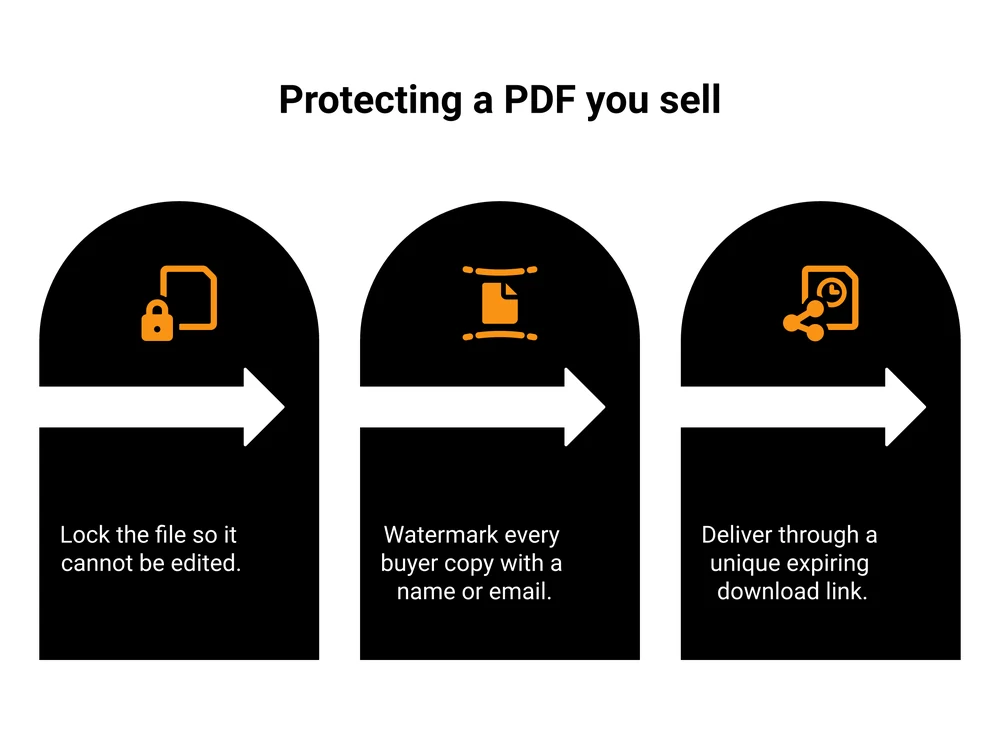
3 things protect a paid PDF better than the lock itself:
- Watermark every copy. Stamp the buyer’s name or email on each page. It rarely stops editing, but it makes resharing personal and traceable, which is a stronger deterrent than any password. My rundown of protecting digital downloads goes deeper on watermark options.
- Deliver securely. Send a unique, expiring download link instead of a public URL or a raw email attachment anyone can forward. See digital delivery systems for the setups that work.
- Sell through a checkout that delivers the file for you. Let the platform hand each buyer their own copy rather than you emailing the same attachment to everyone. I run one of these, CartMango, so keep that in mind, but the principle holds for any tool: platform delivery beats a forwarded email. It also pairs naturally with the steps in preventing ebook piracy.
If the PDF is a product, treat locking as the first 20% of the job. Delivery and watermarking are the other 80%. The same logic runs through how to make and sell an ebook if a PDF is the thing you’re actually selling.
FAQ
How do you make a PDF non-editable for free?
Print it to a new PDF. On Windows choose Microsoft Print to PDF, on Mac use Preview’s Save as PDF, in Chrome print to Save as PDF.
This flattens form fields at no cost. Free online flatten tools do the same if your file has signatures or layers to lock.
How do you lock a PDF so it cannot be edited?
In Adobe Acrobat, go to Tools, Protect, Encrypt, then Encrypt with Password, restrict editing, and set a permissions password. Know that this password only discourages edits and can be removed by free tools.
For a stronger lock, convert the pages to images so there’s no live text to change.
Can a non-editable PDF still be copied or shared?
Yes. Locking a PDF doesn’t make it un-copyable. A locked file can still be screenshotted, redownloaded, or forwarded.
If you’re protecting something you sell, add a per-buyer watermark and secure delivery on top of the lock, since the file itself will always be copyable once opened.
Does printing to PDF really make it uneditable?
It flattens fillable form fields, which is why the community treats it as the go-to fix. But the visible text stays as text, so a determined person could still edit it with the right software or by running OCR.
Printing to PDF is great for signed forms and quick sharing, not for locking down a valuable product.
What is the difference between read-only and non-editable?
Read-only is a permissions flag that asks readers not to allow edits, and it’s easy to switch off. Truly non-editable means the editable parts are gone, either flattened into the page or turned into images.
Read-only sets a rule. Flattening and image conversion remove the thing being edited.
If the PDF you’re locking is something you sell, that’s the exact job I built CartMango for. It hands each buyer their own secure download and takes no per-sale cut on top of Stripe, so protecting your work and getting paid live in one place. It’s free during the beta, then $10 a year.
About the Author

👋 I’m Welly, founder of CartMango (the site you’re on), a checkout platform for digital product sellers. We’ve previously processed $179M+. I also run BirdSend (email marketing tool, 3.1B+ emails sent). On the side I show other non-techie digital sellers how I use AI workflows to automate 50%+ of my operations. Find me on LinkedIn.
Related Reading
- 8 ways to protect digital downloads: the fuller anti-theft playbook for files you sell
- How to protect an ebook from sharing: stop resharing and piracy fast
- Top 9 platforms to sell ebooks: where to list your PDF once it is locked
- How to make and sell an ebook: the full path if a PDF is your product