

To add a shopping cart to a website, you have four main options: a built-in store from a website builder like Shopify or Wix, an embeddable checkout widget you paste into any site, a WordPress plugin like WooCommerce, or a custom-coded cart. Most solo sellers need a simple checkout, not a full multi-item cart.
Here is what trips up most people who want to sell on their own site. They go looking for a shopping cart, picture the full Amazon-style setup with a cart icon, multiple items, and a separate checkout page, then get buried in plugins and settings. For one or two products, that is overkill. I have spent years around checkout and online selling, and the most common mistake I see is building a heavy cart when a single buy button would convert better. The right method depends on two things: what you sell, and what your site is already built on. Get those two right and the setup takes an afternoon, not a month. This guide walks through the four real ways to do it, who each one fits, and the fees you will actually pay.
Key Takeaways
- You probably need a checkout, not a cart. A full multi-item cart only matters if buyers add several products at once. Most digital sellers do not.
- Four real methods exist: a website-builder store, an embeddable checkout widget, a WordPress plugin, or a custom-coded cart.
- Match the method to what you sell. Physical products with inventory point to a builder store. Digital products and services point to a hosted checkout or buy button.
- Fees vary a lot. Some tools take a cut of every sale, others charge a flat yearly or monthly price. On a $20 product that gap adds up fast.
- Always run a real test purchase. Around 70% of carts get abandoned, and a broken or slow checkout is the easiest one to fix.
Shopping cart or checkout: which do you actually need?
People use these two words like they mean the same thing. They do not. The mix-up is common: on Reddit, a store owner found their new WordPress theme shipped without cart and checkout pages and was not sure what they were missing.
A shopping cart holds several items at once. The buyer browses, adds a few things, sees a running total, then moves to checkout. A checkout is just the payment step: name, card, done. A buy button can skip the cart entirely and send one product straight to payment.
That one difference changes what you build.
You need a true multi-item cart when buyers regularly purchase several products in one order. Think a print shop with 40 products, or a clothing store where someone grabs a shirt, socks, and a hat together. Inventory, shipping options, and a running cart total all matter there.
You need a simple checkout when you sell one thing, or a few things bought one at a time. A single course. A coaching package. An ebook, a Notion template, a preset pack. For these, a full cart adds friction and maintenance you do not need. A buy button or a hosted checkout page does the job and usually converts better, because there are fewer clicks between “I want this” and “I paid.”
If you are setting up to sell and want to avoid the common traps first, the free 5-day Online Selling Mistakes Challenge walks through the profit leaks most solo creators miss, including the checkout ones.
So before you install anything, answer one question. Do buyers need to combine multiple products in a single order? If no, you are looking for a checkout, not a cart. That alone saves most people a week of fiddling.
The 4 real ways to add a shopping cart to a website
There are only four real methods. Everything else is a variation of one of these.
| Method | Best for | Tech skill | Typical cost | What you get |
|---|---|---|---|---|
| Website-builder store | Physical products, many items | Low | Monthly fee plus a sales cut | Full cart |
| Embeddable checkout | Digital products, services | Low, copy-paste | Free to low | Checkout or buy button |
| WordPress plugin | You already run WordPress | Medium | Free core plus add-ons | Full cart |
| Custom-coded | Developers, special flows | High | Your dev time | Whatever you build |
Here is what each one means in plain terms.
Website-builder store. If your site runs on Shopify, Wix, or Squarespace, the cart is already built in. You turn on the store feature, add products, and the cart and checkout pages appear. Shopify also gives you a Buy Button you can drop onto a site you host elsewhere. This route is made for physical goods with inventory and shipping.
Embeddable checkout. You create your product inside a hosted tool, then paste a button or a short snippet of code into any page. The tool handles the payment page, the receipt, and the file delivery. This is the fastest route for digital products and services, and it works on almost any site, even a plain HTML page.
WordPress plugin. If you run a WordPress site, you can add a cart with a plugin. WooCommerce turns the site into a full store. For digital downloads, plugins like SureCart and Easy Digital Downloads are lighter and built for files instead of shipping. You can browse the options in the official WordPress plugin directory.
Custom-coded. You build the cart yourself with HTML, CSS, and JavaScript, then connect a payment processor like Stripe. This gives you total control and takes the most work. Unless you have a developer and a real reason, the other three methods get you selling far faster.
Match the method to what you sell and the site you have
The right pick comes down to two questions: what are you selling, and what is your site built on?
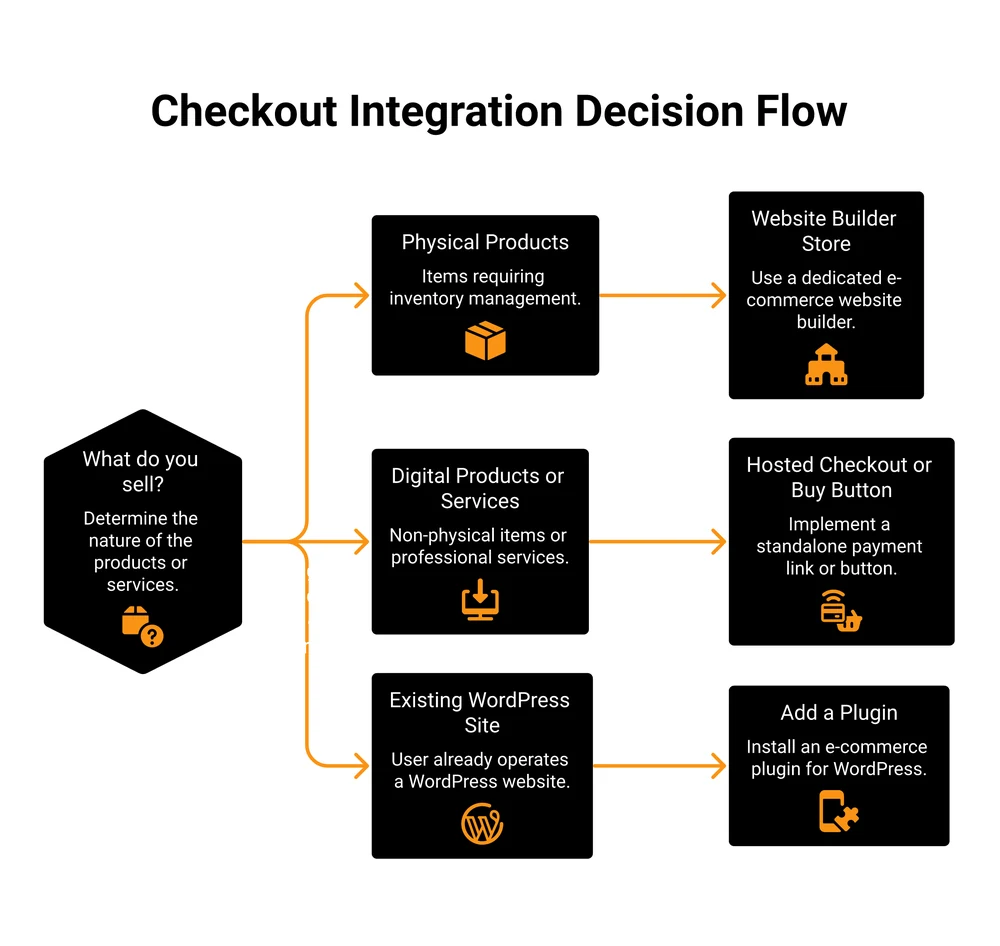
You sell physical products. Go with a builder store or WooCommerce. You need inventory tracking, shipping rates, and tax handling, and those are built into Shopify, Wix, Squarespace, and WooCommerce. A lightweight checkout tool is not the right fit here.
You sell digital products or services. Use a hosted checkout or a buy button. Downloads, courses, memberships, coaching, and templates do not need shipping or inventory. They need a clean payment page and automatic delivery. Hosted checkout tools built for digital sellers include Gumroad, Payhip, SendOwl, and my own platform, CartMango, plus the WordPress plugins SureCart and Easy Digital Downloads if you stay inside WordPress.
You already run WordPress. Add a plugin and skip the site migration. WooCommerce for physical goods, SureCart or Easy Digital Downloads for files. If you want to weigh the lighter WordPress checkout options against each other, this breakdown of the best Gumroad alternatives covers the trade-offs.
You have no website yet. You may not need one. You can sell straight from a hosted checkout link in your bio or your emails. Here is the full walkthrough on selling digital products without a website.
The pattern is simple. Physical and inventory-heavy goes to a builder or WooCommerce. Digital and simple goes to a hosted checkout. Pick the lightest tool that covers what you actually sell.
How to add a checkout to your site, step by step
This is the hosted-checkout route, the one most solo and digital sellers should use. It works on any site and takes about an afternoon.
- Pick a hosted checkout tool and create your product. Set the name, the price, and the file or access the buyer receives.
- Connect your payment processor. Most tools run on Stripe. The standard US rate is 2.9% plus $0.30 per sale, and that processing fee applies no matter which tool you use.
- Grab the buy link or embed code. The tool gives you a shareable checkout link and usually a snippet of embed code.
- Add a buy button to your site. Paste the link onto any button, or drop the embed code into your page where you want the “Add to Cart” or “Buy” button to appear. For details on how a clean buy-and-deliver flow should work, see these digital delivery systems.
- Run a real test purchase. Buy your own product end to end before you go live. Check the receipt, the download, and the confirmation email. This is the step people skip, and it is the one that catches broken links.
The tools differ most on fees, and that gap is where solo sellers quietly lose money. Here is what the common digital-checkout options actually cost.
| Option | What you pay | Best for |
|---|---|---|
| Gumroad | 10% of every sale, no monthly fee, acts as merchant of record | Your very first sale, zero setup |
| Payhip | 5% per sale on the free plan, plus Stripe or PayPal fees | A free start, lower fees on paid plans |
| SendOwl | A flat monthly subscription, no per-sale cut, plus Stripe fees | Steady, higher volume |
| WordPress plugin (SureCart, EDD) | Free core plugin, you bring Stripe, paid tiers for extras | You already run WordPress |
| CartMango | Free during beta, then from $10 a year, no per-sale cut on top of Stripe | Keeping the most of each digital sale |
I will be upfront: CartMango is my platform, built so digital sellers keep more of each sale instead of handing over a cut on every order.
On a $20 product, a 10% cut is $2 gone before processing. Sell 500 of those and that is $1,000 a year on fees alone. A flat yearly or monthly price can work out cheaper once you make regular sales, so do the math on your own volume before you commit.
Mistakes that quietly cost you sales
The setup is the easy part. These are the mistakes I see most.
- Building a full cart for one product. More settings, more to maintain, more clicks for the buyer. If you sell one thing, a buy button beats a cart.
- Skipping the test purchase. A dead download link or a broken receipt email kills trust on the first real sale.
- A slow or redirect-heavy checkout. Around 70% of carts get abandoned, and every extra page or redirect makes that worse. Keep the path to payment short.
- Not capturing the buyer’s email. The sale is the start of the relationship, not the end. If your checkout does not pass the email to your email tool, you cannot sell to that buyer again.
- No abandoned-checkout recovery. Some buyers leave mid-purchase. A simple reminder email wins back a slice of them, and most hosted tools can send one.
Get the pricing right too. If you are not sure what to charge before you build any of this, start with how to price digital products.
FAQ
How do I add a shopping cart icon in HTML?
You can add the visual icon with a free icon set like Font Awesome, which gives you a cart symbol in one line of code. The icon alone does nothing, though. To make it work you link it to a hosted checkout or a cart tool that handles the actual payment. The icon is just decoration. The checkout link is what actually takes the payment.
How do I add a shopping cart to a website for free?
Use a hosted tool with a free tier. Payhip’s free plan and the core WooCommerce and Easy Digital Downloads plugins all cost nothing to start. You still pay payment processing on each sale, usually around 2.9% plus $0.30 through Stripe or PayPal, because that fee goes to the processor, not the cart tool.
Can you add a shopping cart to Google Sites?
Not a native one. Google Sites has no built-in store or checkout. The workaround is to embed a buy button or a checkout link from a hosted tool, or paste in a third-party cart widget using the embed option. You create the product elsewhere, then drop the button onto your Google Sites page.
How do I share a cart or checkout link?
Most hosted checkout tools give every product its own link. You can paste that link anywhere: a button on your site, your link in bio, an email, a DM. The buyer clicks it and lands straight on the payment page. This is why many sellers skip the website entirely and sell from a link.
How do I add a shopping cart to a WordPress website?
Install a plugin from your dashboard. Go to Plugins, then Add New, search for WooCommerce for physical goods or SureCart or Easy Digital Downloads for files, install, and activate. The plugin adds the cart, checkout, and product pages for you. Then connect Stripe or PayPal and run a test purchase.
If you sell digital products, the checkout you choose decides how much of each sale you actually keep. CartMango is built for that: a clean checkout for digital sellers with no per-sale cut on top of standard Stripe processing. Free during the beta, then from $10 a year. You can create your free account and add a shopping cart to your website today, though for most digital sellers a single buy button is all you need to start.
About the Author

👋 I’m Welly, founder of CartMango (the site you’re on), a checkout platform for digital product sellers. We’ve previously processed $179M+. I also run BirdSend (email marketing tool, 3.1B+ emails sent). On the side I show other non-techie digital sellers how I use AI workflows to automate 50%+ of my operations. Find me on LinkedIn.
Related Reading
- Sell digital products without a website: skip the site and sell straight from a checkout link
- Creating digital downloads that sell: get the product ready before you add a cart
- Top digital delivery systems: how files reach the buyer automatically after checkout
- Best Gumroad alternatives: for readers comparing hosted checkout options
- Platforms to sell ebooks: where to sell if a full site is more than you need